







How to Use the Starlink App: Your Essential Guide
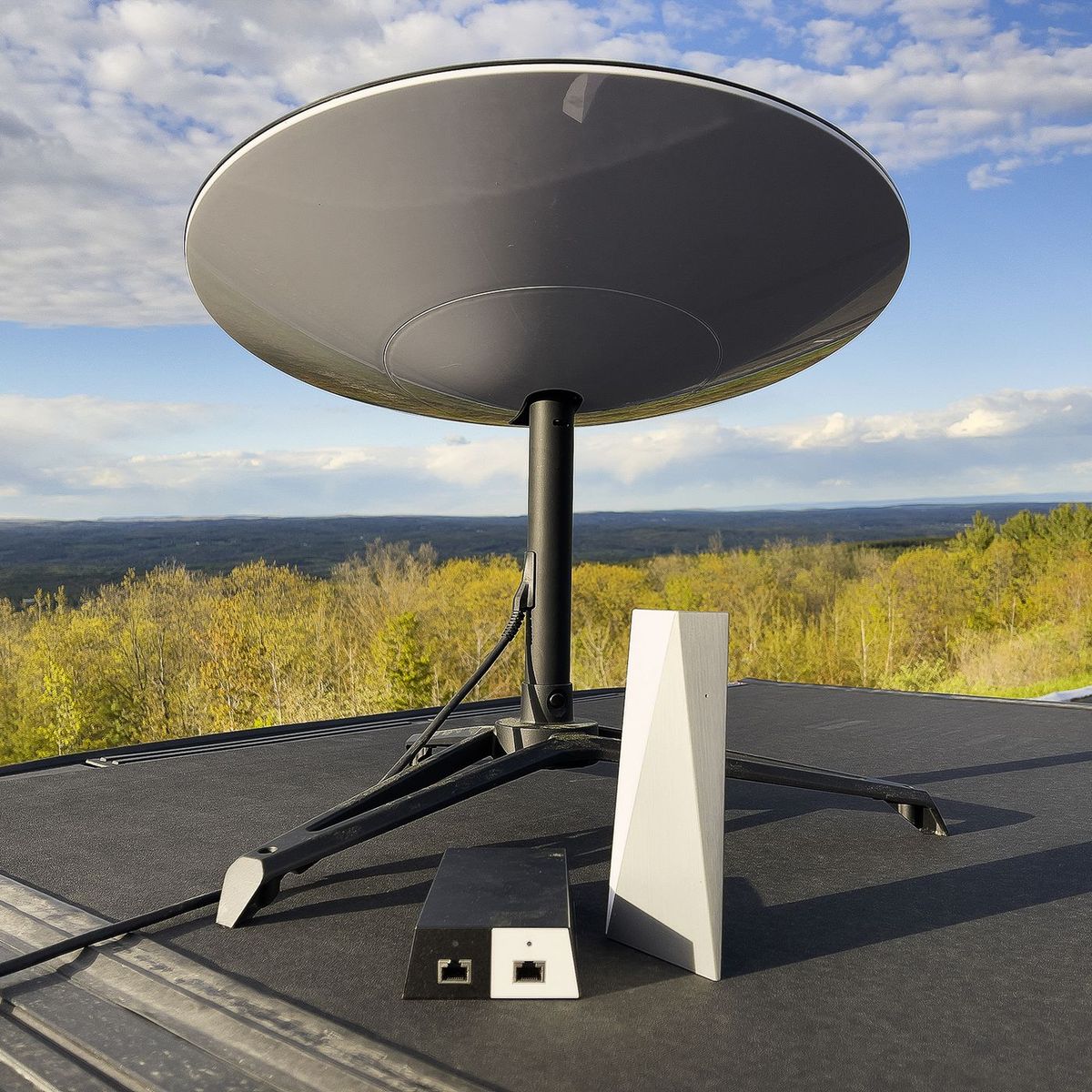
The Starlink app is a powerful companion for anyone using Starlink satellite internet in Kenya, whether at home, in the office, or on the move. It allows users to monitor real-time network performance, manage connected devices, and adjust settings to optimize their internet experience. For both residential and business users, the app serves as a centralized hub for controlling your Starlink connection, making it easier to maintain consistent, high-speed connectivity across all devices.
Using the Starlink app effectively can significantly enhance your internet experience. Through the app, users can check signal strength, test internet speed, and troubleshoot common connectivity issues without needing to contact support. The app also provides alerts and notifications about service updates, network interruptions, or firmware upgrades, ensuring that your Starlink system stays up to date and performs at its best. For households with multiple users or businesses with several devices, the app’s device management features help prioritize bandwidth and maintain a smooth connection for everyone.
Getting started with the Starlink app in Kenya is straightforward, but understanding its full range of features unlocks the service’s true potential. From configuring Wi-Fi settings to enabling advanced troubleshooting tools, the app empowers users to take control of their satellite internet connection. By learning how to navigate its interface and utilize its functions, Starlink users can enjoy reliable, high-performance internet anytime, anywhere in Kenya.
1. Overview of the Starlink App
The Starlink app is an essential tool that allows users to manage, monitor, and configure their Starlink internet system directly from their smartphone or tablet. It simplifies the process of setting up the satellite dish, checking network performance, and troubleshooting connectivity issues without requiring advanced technical knowledge. For users in Kenya, where Starlink is increasingly being adopted for homes, businesses, and remote installations, the app provides a convenient way to ensure the system operates efficiently at all times.
1.1 Purpose and Role of the Starlink App
• The Starlink app acts as the central control platform for managing your Starlink internet connection.
• It helps users set up their satellite dish and router during the initial installation process.
• The app also provides real-time insights into network performance and connectivity status.
• Users can access system settings, manage Wi-Fi configurations, and view alerts or notifications about service interruptions.
The primary purpose of the Starlink app is to simplify system management by providing users with a single platform to monitor and control their Starlink connection.
1.2 Device Compatibility and Platform Support
• The Starlink app is available on Android smartphones and tablets through the Google Play Store.
• It is also supported on iOS devices such as iPhones and iPads through the Apple App Store.
• In addition to mobile platforms, users can access certain management features through web or desktop interfaces via their Starlink account.
• This wide compatibility ensures that most users can easily manage their connection regardless of the device they use.
Cross-platform compatibility makes the Starlink app accessible to a broad range of users across different devices and operating systems.
1.3 Core Features and Functional Capabilities
• System Setup: Guides users through the installation process, including dish positioning and router configuration.
• Network Monitoring: Displays real-time connection status, uptime, and network performance metrics.
• Wi-Fi Management: Allows users to rename their network, change passwords, and manage connected devices.
• Troubleshooting Tools: Provides diagnostics and automated guidance to help resolve connection problems quickly.
These features make the Starlink app a powerful tool for both first-time installation and ongoing network management.
1.4 Advantages for Starlink Users in Kenya
• The app helps users in remote or rural areas monitor connectivity without requiring on-site technical support.
• Real-time diagnostics allow quick troubleshooting, reducing downtime for homes and businesses.
• Installation guidance simplifies the process for users who choose self-installation instead of professional setup.
• Performance monitoring helps users optimize dish placement to achieve better speeds and stable connections.
For Kenyan users, the Starlink app improves the overall experience by providing convenient control, faster troubleshooting, and better visibility into internet performance.
2. Downloading and Installing the Starlink App

Before setting up a Starlink internet system, users need to download and install the official mobile application used for configuration and management. The Starlink App is designed to guide users through the installation process, connect the hardware to their account, and help monitor network performance. Installing the app correctly ensures a smooth setup experience and reliable system control.
2.1 Downloading the App from Official App Stores
• Android users can download the application from the Google Play Store by searching for “Starlink.”
• iPhone and iPad users can install the app through the Apple App Store.
• Always download the official app published by Starlink to ensure security and proper functionality.
• Once downloaded, the installation process usually completes automatically within a few seconds, depending on your internet speed.
Installing the Starlink app from official app stores ensures users receive the authentic version required for device setup and network management.
2.2 Verifying Device Compatibility Before Installation
• Ensure your smartphone or tablet runs a recent version of Android or iOS that supports the Starlink application.
• Devices should have Wi-Fi capability, since the app connects directly to the Starlink router during setup.
• Check that your device has sufficient storage space for the application and future updates.
• Using updated operating systems improves compatibility and reduces the chances of installation errors.
Confirming device compatibility helps prevent installation issues and ensures the app runs smoothly.
2.3 Creating and Linking a Starlink Account
• After installing the app, users must log in or create a Starlink account.
• This account links the Starlink hardware—such as the dish and router—to the user’s service subscription.
• The app allows users to register the device, configure Wi-Fi settings, and activate the internet connection.
• Account access also enables users to manage billing, subscription plans, and system settings.
Creating a Starlink account connects the hardware to the service platform and allows users to manage their internet system easily.
2.4 Keeping the App Updated for Best Performance
• Regular updates improve system stability and security.
• Updates often introduce new features, improved diagnostics, and better compatibility with Starlink hardware.
• Users should enable automatic updates through their app store settings to ensure the latest version is installed.
• Running the newest version of the app helps avoid bugs and improves network monitoring accuracy.
Keeping the Starlink app updated ensures users benefit from improved performance, new features, and enhanced troubleshooting capabilities.
3. Setting Up Your Starlink Connection Using the App
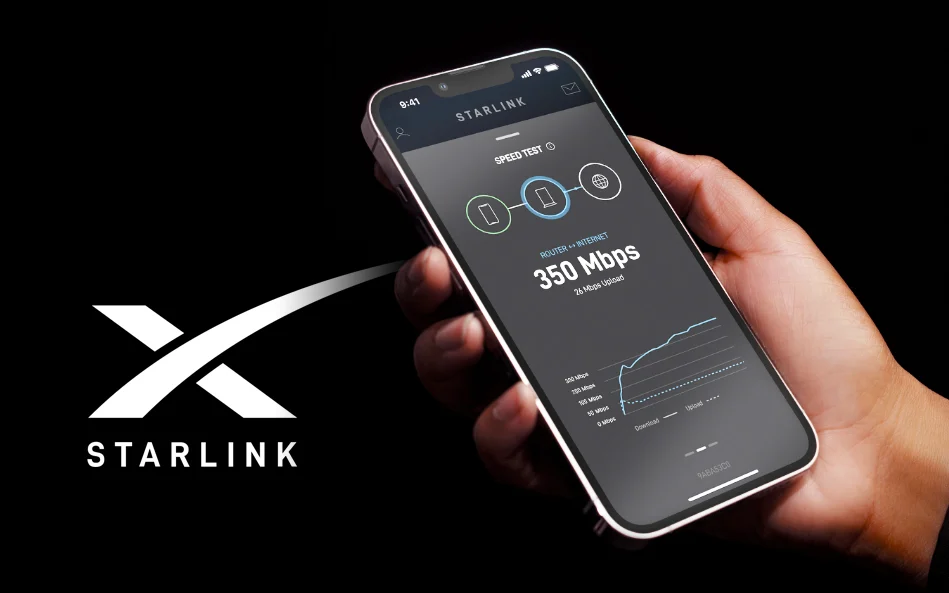
Once the Starlink hardware is installed, the next step is to configure the internet connection using the Starlink App. The application provides step-by-step guidance that helps users activate their system, configure Wi-Fi settings, and verify connectivity. Proper setup ensures the satellite dish communicates effectively with Starlink satellites and delivers stable internet performance.
3.1 Connecting the Starlink Dish and Router
• Begin by assembling the Starlink hardware components, including the satellite dish, mounting base, router, and cables.
• Connect the dish cable securely to the router and plug the router into a power source.
• Once powered on, the dish automatically begins adjusting its position to locate Starlink satellites.
• The router will create a temporary Wi-Fi network that allows your smartphone to connect during the setup process.
This step ensures that the hardware is powered correctly and ready to be configured using the mobile app.
3.2 Adding Your Starlink Device in the App
• Open the Starlink App on your smartphone or tablet.
• The application will automatically search for nearby Starlink devices.
• When your device appears on the screen, select it to begin the setup process.
• Follow the on-screen instructions to link the device with your Starlink account.
Adding the device through the app allows the system to be recognized and managed from your account dashboard.
3.3 Configuring the Wi-Fi Network Name and Password
• The setup process will prompt you to create a Wi-Fi network name (SSID) for your Starlink router.
• Choose a strong password to secure your wireless network.
• Once saved, the router will restart and begin broadcasting the new Wi-Fi network.
• You can then connect your smartphones, laptops, smart TVs, and other devices using the newly created credentials.
Setting up a secure Wi-Fi network ensures that only authorized users can access your Starlink connection.
3.4 Running the Initial Connection Test
• After configuring the Wi-Fi network, the app performs an automatic connection test.
• This test checks whether the dish has successfully connected to the satellite network.
• It measures important metrics such as internet speed, latency, and signal stability.
• If issues are detected, the app will recommend troubleshooting steps to improve performance.
This diagnostic test confirms that your Starlink system is functioning properly and ready for regular internet use.
3.5 Ensuring Proper Dish Alignment and Line-of-Sight
• Starlink dishes require a clear, unobstructed view of the sky to communicate with satellites.
• Avoid placing the dish near trees, buildings, or metal structures that could block the signal.
• The app includes a sky scanning tool that helps identify possible obstructions during installation.
• For installations in Kenya, professional installers such as Peak Audio often recommend mounting the dish on rooftops or elevated poles for better signal reception.
Proper dish alignment significantly improves connection reliability and overall internet performance.
Setting up a Starlink connection using the Starlink App is a straightforward process that involves connecting the dish and router, adding the device through the app, configuring Wi-Fi settings, and running a connection test. Ensuring the satellite dish has a clear line-of-sight to the sky is crucial for stable performance. By following these steps carefully, users in Kenya can quickly activate their Starlink system and enjoy reliable high-speed satellite internet.
4. Monitoring Your Starlink Internet

After completing the setup, users can continuously track their internet performance using the Starlink App. The application provides several monitoring tools that help users evaluate network performance, detect potential issues, and ensure the connection remains stable. These monitoring features are particularly valuable for homes, businesses, and remote installations where reliable internet connectivity is essential.
4.1 Real-Time Speed Tests and Latency Monitoring
• The app allows users to run real-time internet speed tests directly from their mobile device.
• It measures download and upload speeds, giving users a clear view of their network performance.
• Latency (ping) measurements are also displayed, which helps determine the responsiveness of the connection.
• These tests help users identify whether the connection is performing as expected or if adjustments may be required.
Monitoring speeds and latency regularly ensures that the Starlink system is delivering optimal performance.
4.2 Tracking Data Usage and Subscription Details
• The Starlink app allows users to monitor data usage patterns based on their current subscription plan.
• It provides visibility into priority data allocation, especially for plans that include capped or prioritized data tiers.
• Users can also review subscription details and manage their plan through the app interface.
• This helps households and businesses avoid unexpected performance changes during heavy usage periods.
Tracking data usage ensures users stay within their plan limits while maintaining consistent internet performance.
4.3 Monitoring Connection Stability and Uptime
• The app provides insights into connection uptime and stability over time.
• Users can view system performance reports that show when the network is active or experiencing interruptions.
• If the dish encounters temporary obstructions such as trees or buildings, the app can display diagnostic information.
• These monitoring tools help users quickly identify the cause of connectivity issues.
Maintaining high uptime is essential for applications such as remote work, online learning, and cloud-based services.
4.4 Alerts, Notifications, and Troubleshooting Guidance
• The Starlink app sends automatic alerts and notifications when network issues occur.
• Users may receive warnings related to obstructions, hardware connectivity problems, or system updates.
• Built-in troubleshooting tools provide recommended actions such as rebooting the router or repositioning the dish.
• These alerts help users resolve problems quickly without needing extensive technical support.
Real-time notifications make it easier to maintain a stable and reliable internet connection.
Monitoring your Starlink internet connection through the Starlink App allows users to track speed performance, data usage, connection stability, and system alerts in real time. These tools provide valuable insights into network health and help identify issues before they affect daily activities. By regularly reviewing these monitoring features, Starlink users in Kenya can ensure their satellite internet connection remains reliable and optimized for both personal and professional use.
5. Managing Network Settings
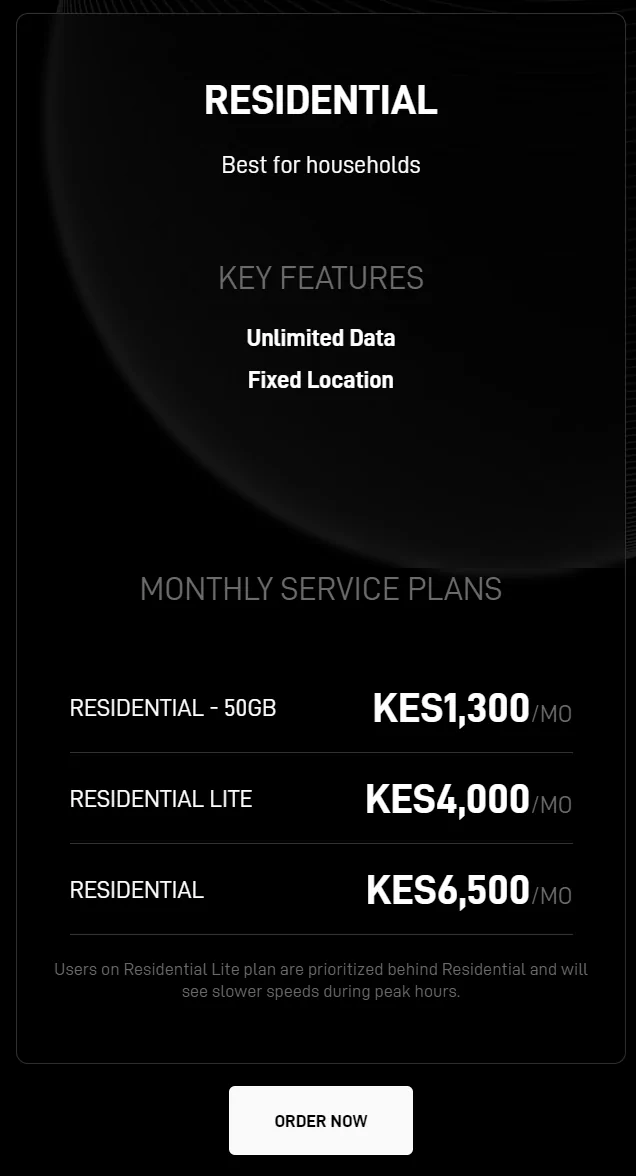
The Starlink App provides several tools that allow users to manage and customize their Wi-Fi network directly from their smartphones. These settings help improve security, organize connected devices, and optimize internet performance for both home and business environments. Proper network management ensures that your Starlink connection remains secure, stable, and capable of supporting multiple devices without unnecessary congestion.
5.1 Changing Wi-Fi Network Name and Password
• The Starlink app allows users to easily change the Wi-Fi network name (SSID) created during the initial setup.
• Renaming the network can help users identify their Starlink Wi-Fi among many nearby networks, especially in apartment buildings or office environments where multiple wireless signals may exist.
• The app also allows users to update the Wi-Fi password, which is important for maintaining network security and preventing unauthorized access.
• If a password becomes widely shared or compromised, updating it ensures that only trusted users can reconnect to the network.
• After making changes, the router automatically restarts and begins broadcasting the updated network name and password.
Changing network credentials periodically helps maintain a secure wireless environment and prevents unauthorized bandwidth usage.
5.2 Adding and Managing Connected Devices
• The Starlink app displays a complete list of devices connected to the network in real time.
• Users can identify devices such as smartphones, laptops, smart TVs, gaming consoles, and security cameras.
• Each device can be labeled or recognized easily, allowing the user to understand how the network bandwidth is being utilized.
• If an unfamiliar device appears on the network, it can be blocked or disconnected to prevent unauthorized access.
• Monitoring connected devices also helps users understand which devices consume the most bandwidth, which is useful when troubleshooting slow internet speeds.
By actively managing connected devices, users can keep their network organized and ensure fair bandwidth distribution among all devices.
5.3 Setting Parental Controls and Device Prioritization
• The Starlink app allows parents or network administrators to apply basic parental control features.
• These controls can limit when certain devices access the internet, helping manage children's screen time or prevent late-night usage.
• Users can schedule internet access for specific devices during certain hours of the day.
• In addition, the system allows device prioritization, where certain devices receive better bandwidth allocation during peak usage times.
• For example, a laptop used for work or video conferencing can be prioritized over entertainment devices such as smart TVs or gaming consoles.
These features help households maintain balanced internet usage while ensuring critical tasks like remote work or online learning remain uninterrupted.
5.4 Adjusting Advanced Settings for Business or Multi-Device Environments
• For environments with many connected devices, such as offices, co-working spaces, or smart homes, the Starlink app allows users to manage advanced network configurations.
• Businesses can optimize their Wi-Fi setup to support multiple simultaneous connections without excessive congestion or performance drops.
• Network administrators can analyze device activity and adjust network usage to maintain stable speeds for critical applications like video conferencing, cloud services, and VoIP calls.
• Advanced configuration options can also assist in improving network organization when several employees or departments rely on the same Starlink connection.
These advanced features are particularly valuable for organizations that rely heavily on internet connectivity for daily operations.
Managing network settings through the Starlink App gives users full control over their internet environment. By updating Wi-Fi credentials, monitoring connected devices, applying parental controls, and adjusting advanced network settings, users can maintain a secure and efficient network. Proper management not only protects the connection from unauthorized access but also ensures that available bandwidth is distributed effectively among devices. For homes, offices, and multi-device environments in Kenya, these tools make it easier to keep the Starlink network stable, organized, and optimized for everyday internet use.
6. Troubleshooting and Technical Support
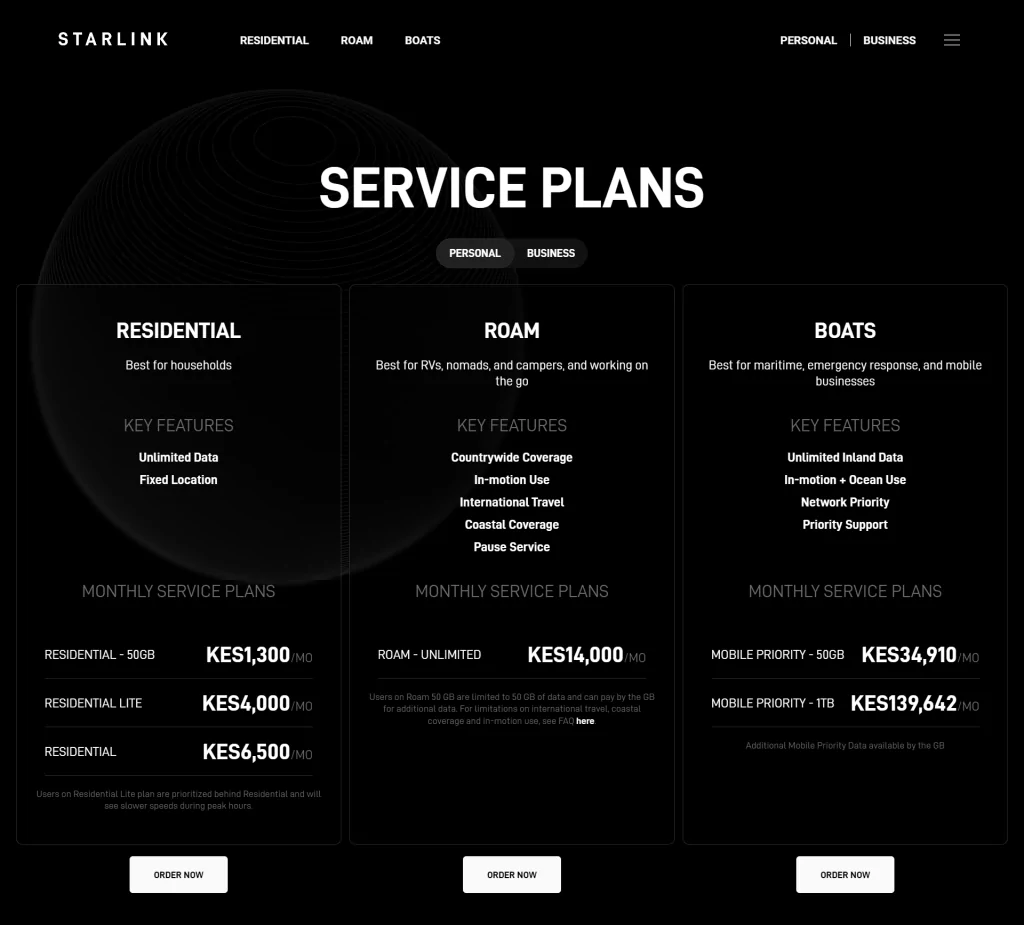
The Starlink App includes built-in troubleshooting and support tools that help users quickly diagnose and resolve connectivity problems. Instead of relying only on manual inspection, the app provides real-time system status, automated diagnostics, and direct communication with support services. These features allow both end-users and technicians to identify faults, restore connectivity, and maintain reliable internet service.
6.1 Diagnosing Common Connectivity Issues via the App
• The Starlink app continuously monitors the status of the dish, router, and network connection, allowing users to see whether the system is online, offline, searching for satellites, or rebooting.
• When connectivity problems occur, the app displays alerts and error messages that help identify the cause of the issue.
• One of the most useful diagnostic tools is the obstruction checker, which analyzes whether trees, buildings, or other objects are blocking the satellite signal. Even small obstructions can cause intermittent internet outages.
• The app also includes speed testing tools, allowing users to check whether slow internet is caused by Wi-Fi limitations, device congestion, or satellite connectivity issues.
• In addition, the system can detect hardware issues such as loose cables, router connection failures, or dish alignment problems.
By providing these automated diagnostic tools, the Starlink app helps users quickly determine whether the problem is related to equipment, signal obstruction, or network performance.
6.2 Using In-App Guidance to Reset or Reboot the Starlink Device
• Many internet issues can be resolved by restarting the system, and the Starlink app provides simple tools to perform these actions remotely.
• Users can navigate to Settings within the app and select options such as “Reboot Router” or “Reboot Starlink” to restart the network hardware.
• A reboot refreshes the connection between the dish and the satellite network, often resolving temporary connectivity interruptions or slow speeds.
• If problems persist, the app may guide users to perform a factory reset, which restores the router and system settings to their original configuration.
• After a reset or reboot, the system usually takes several minutes to reconnect to the satellite network and reestablish internet access.
These guided troubleshooting steps make it easier for users to resolve many issues without requiring advanced technical knowledge.
6.3 Reporting Technical Issues to Starlink Support Through the App
• If troubleshooting steps do not resolve the issue, the Starlink app allows users to contact support directly.
• Within the Support section, users can browse troubleshooting articles related to common problems such as offline alerts, account errors, or equipment malfunctions.
• If the issue remains unresolved, users can create a support ticket, providing system details, error messages, and screenshots directly to Starlink technicians.
• The support system enables technicians to review the network status remotely and determine whether the issue is caused by hardware failure, network outages, or account configuration problems.
• In cases where equipment is faulty, Starlink support may arrange hardware replacement or further technical assistance.
This direct communication channel ensures that users receive professional assistance when automated troubleshooting cannot resolve the issue.
6.4 How the App Assists Peak Audio Technicians in Monitoring and Resolving Problems Efficiently
For technicians from Peak Audio, the Starlink app serves as an essential tool for maintaining reliable customer installations.
• Technicians can quickly check system status and network performance during installation or maintenance visits.
• The app allows technicians to verify that the dish has a clear line of sight to the satellites, ensuring optimal signal quality.
• During troubleshooting, technicians can run diagnostic tests, reboot the system, or check device connectivity without dismantling the installation.
• The app also enables technicians to identify issues remotely, reducing the need for repeated on-site visits.
• By monitoring system performance and quickly responding to alerts, Peak Audio technicians can maintain stable internet service for homes and businesses using Starlink.
Using these tools improves efficiency, shortens troubleshooting time, and ensures that customers receive fast and reliable technical support.
The troubleshooting and support tools built into the Starlink App make it easier to diagnose and resolve internet connectivity issues. Through real-time diagnostics, guided reboot and reset options, and direct communication with support services, users can quickly restore network functionality. For professional installers such as Peak Audio technicians, these features provide valuable insights into system performance, enabling efficient monitoring, maintenance, and problem resolution for Starlink installations.
7. Features for Advanced Users
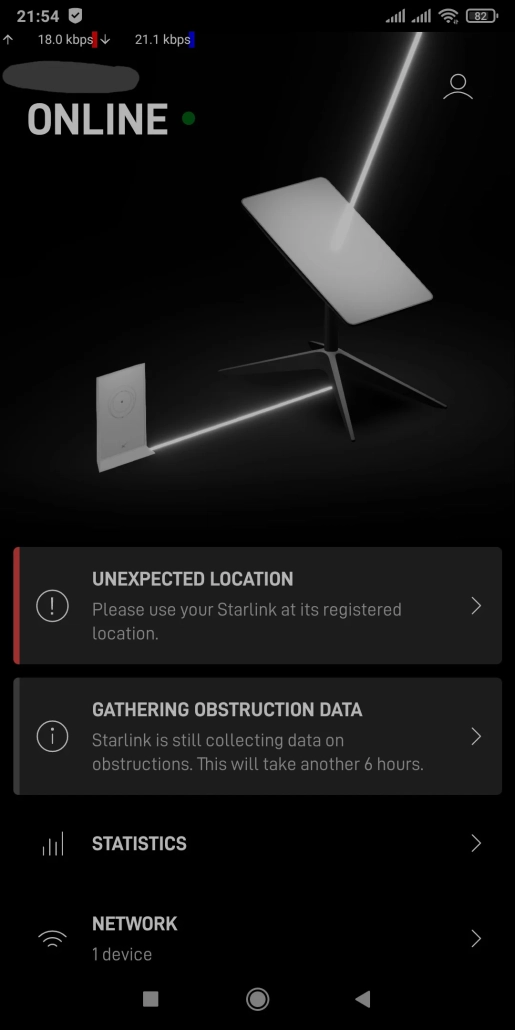
While the Starlink App is designed to be simple enough for everyday users, it also provides several advanced features that help experienced users, technicians, and businesses optimize their Starlink systems. These tools allow deeper monitoring of network performance, automated system updates, and integration with modern digital environments such as smart homes and connected devices. For users who rely heavily on stable connectivity, these advanced capabilities provide additional control and efficiency.
7.1 Monitoring Signal Strength and Dish Positioning
• Advanced users can monitor satellite signal strength and dish connectivity status directly through the app interface.
• The app provides diagnostic information that indicates whether the dish has a clear line-of-sight to the satellite network.
• It can detect potential signal interruptions caused by trees, buildings, or other obstructions that block communication with satellites.
• Users can also observe connection stability and obstruction reports, which highlight how often the dish experiences signal interruptions during a given period.
• This information is particularly useful when optimizing dish placement during installation or relocating the dish to improve performance.
By monitoring signal quality and dish positioning, advanced users can fine-tune their setup to achieve more stable speeds and fewer connectivity interruptions.
7.2 Firmware Updates and Automatic System Upgrades
• The Starlink system regularly receives firmware updates that improve performance, security, and compatibility with new features.
• These updates are typically delivered automatically through the satellite network without requiring manual intervention.
• The Starlink app notifies users when updates occur or when a system reboot is required to apply new firmware.
• Firmware upgrades may include improvements in network optimization, satellite communication efficiency, and hardware reliability.
• Keeping firmware updated ensures that the system continues to operate with the latest improvements and bug fixes.
Automatic updates help maintain system reliability while reducing the need for manual technical maintenance.
7.3 Scheduling Maintenance or Temporary Network Pauses
• Advanced users can temporarily pause their Starlink service or schedule maintenance windows when necessary.
• This feature is useful for users who operate seasonal properties, remote sites, or temporary installations.
• Pausing the system can reduce unnecessary usage while allowing users to reactivate service when required.
• Scheduling maintenance periods also allows technicians to perform upgrades or equipment checks without affecting critical operations.
• Businesses that rely on Starlink connectivity can plan maintenance during off-peak hours to minimize operational disruption.
These scheduling tools provide flexibility for managing the network according to operational needs.
7.4 Integration with Smart Home Systems and IoT Devices
• Starlink networks can support smart home ecosystems, allowing connected devices such as security cameras, lighting systems, and smart appliances to operate through the Starlink internet connection.
• IoT devices—including sensors, monitoring systems, and automation equipment—can be connected through the Starlink router.
• Reliable satellite connectivity ensures that remote monitoring systems remain operational even in areas where traditional internet infrastructure is unavailable.
• Businesses and property owners can use Starlink to maintain smart surveillance systems, automated irrigation systems, or remote monitoring equipment.
This level of connectivity allows Starlink to function as the backbone of modern smart homes and digital operations.
The advanced features available through the Starlink App provide powerful tools for users who want deeper control over their satellite internet system. From monitoring signal strength and dish alignment to managing firmware updates, scheduling maintenance, and connecting smart devices, these capabilities allow users to optimize network performance and reliability. For advanced users, businesses, and technology enthusiasts in Kenya, these features help ensure that the Starlink system operates efficiently within modern digital environments.
8. Tips for Optimizing Starlink Performance in Kenya
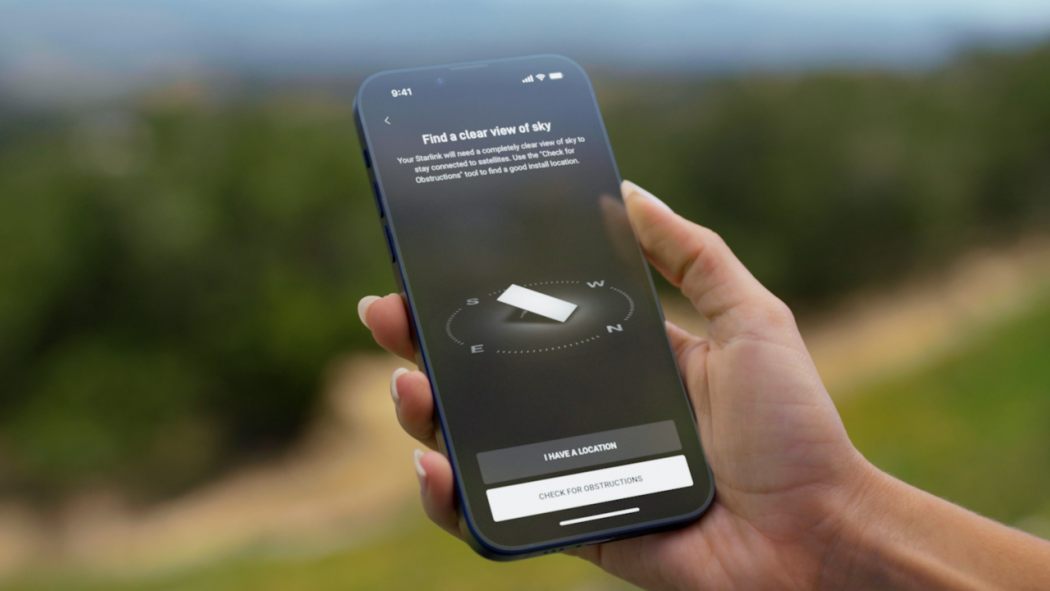
While Starlink provides fast and reliable satellite internet, its performance can be maximized by following a few practical guidelines. The Starlink App plays a central role in monitoring and maintaining optimal performance. Proper dish placement, regular monitoring, and proactive management ensure stable speeds, low latency, and consistent connectivity for homes, businesses, and remote installations across Kenya.
8.1 Ensuring a Clear Line-of-Sight for the Dish
• The Starlink dish requires an unobstructed view of the sky to maintain a strong connection with the satellite network.
• Objects such as tall trees, buildings, or utility poles can block the signal, causing slower speeds or intermittent connectivity.
• The Starlink app provides tools to detect obstructions and recommend optimal placement locations.
• Ensuring a clear line-of-sight is especially important in areas with dense vegetation or crowded urban environments.
A properly positioned dish reduces signal interruptions and maintains stable, high-speed internet.
8.2 Positioning the Dish to Minimize Interference
• Beyond line-of-sight, physical placement matters for avoiding signal interference.
• Position the dish away from reflective surfaces like metal roofs or glass panels, which can cause signal distortion.
• Elevating the dish using mounts or rooftops can improve connectivity, particularly in rural areas with uneven terrain.
• Regularly inspect the surroundings as trees grow or new structures are built, which could impact signal quality.
Strategic positioning ensures the Starlink system consistently performs at its maximum potential.
8.3 Regularly Checking the App for Updates, Alerts, and Network Analytics
• The Starlink app provides real-time performance analytics, including speed, latency, uptime, and data usage.
• Users are alerted to any disruptions, obstructions, or required firmware updates.
• Monitoring these alerts allows proactive adjustments before connectivity problems escalate.
• Regular app checks ensure that the system is running efficiently and firmware is always up-to-date, improving reliability and security.
Staying engaged with the app enables users to maintain optimal network health over time.
8.4 Managing Multiple Starlink Devices for Businesses or Remote Offices
• Businesses or remote offices with multiple Starlink devices can use the app to monitor and manage all units from a single interface.
• The app allows administrators to track each device’s performance, prioritize bandwidth for critical applications, and troubleshoot any issues remotely.
• Centralized management reduces downtime and ensures smooth operations for offices, farms, construction sites, or educational facilities.
• Proper management is particularly beneficial in multi-site deployments where maintaining consistent connectivity is critical.
Centralized control simplifies operations and maximizes the efficiency of multiple Starlink installations.
Optimizing Starlink performance in Kenya involves careful dish placement, regular monitoring through the Starlink App, and proactive network management. Ensuring a clear line-of-sight, minimizing interference, checking alerts and analytics, and managing multiple devices effectively all contribute to faster, more stable internet connections. By following these guidelines, users—from households to businesses—can make the most of Starlink’s satellite internet capabilities, even in remote or challenging environments.
9. FAQs on Using the Starlink App in Kenya
The Starlink App is a key companion for Starlink users in Kenya. It simplifies the setup, monitoring, management, and troubleshooting of satellite internet. Here’s a detailed breakdown of frequently asked questions, with explanations of each feature.
9.1 Free Access and Installation
Is the Starlink app free?
-
Yes, the app is completely free to download on iOS, Android, and desktop platforms.
-
There are no hidden fees for using its features, which include network monitoring, device management, and troubleshooting tools.
-
Being free ensures that all Starlink users can benefit from real-time network insights without additional costs.
Can I use the app without a Starlink subscription?
-
No, a Starlink device (dish and router) is required.
-
The app only works when linked to a registered Starlink account and active hardware, providing performance data and configuration options.
9.2 Compatibility Across Starlink Packages
Does the app work with both residential and business Starlink kits?
-
Yes, the app supports all Starlink hardware models, including Residential, Mini, Roam, and Business kits.
-
Users can manage single devices or multiple units from the same interface, making it suitable for homes, offices, or remote installations.
9.3 Monitoring Internet Performance
Can I monitor my internet speed using the app?
-
Yes, real-time speed and latency measurements are available.
-
Users can track download/upload speeds and ping to verify connection quality.
-
Performance monitoring helps identify periods of congestion or hardware issues and ensures optimal usage.
Can the app alert me about outages?
-
Yes, the app provides notifications for downtime or connectivity disruptions.
-
Alerts may indicate whether the issue is caused by obstructions, network maintenance, or hardware faults.
-
This allows users to act quickly and reduce interruptions to work or online activities.
9.4 Network Management Features
How do I add new devices to my network through the app?
-
The Wi-Fi settings section shows all connected devices in real time.
-
Users can add, rename, or remove devices, helping manage bandwidth and prevent unauthorized access.
-
Device management is crucial for homes with multiple gadgets or businesses with many users.
Can I change my Wi-Fi password using the app?
-
Yes, the app allows you to update the SSID (network name) and password instantly.
-
This enhances network security, preventing unauthorized access and ensuring bandwidth is used efficiently.
Does the app allow remote management?
-
Absolutely. Users can monitor and control their network remotely, which is useful for multi-site setups, vacation homes, or business offices.
-
Remote management allows troubleshooting and device prioritization without needing to be on-site.
9.5 Updates and Technical Support
Are firmware updates automatic via the app?
-
Yes. Starlink devices receive automatic firmware updates to improve performance, security, and functionality.
-
The app provides notifications for updates, ensuring devices are always running the latest version without manual intervention.
Is the app useful for troubleshooting in Kenya?
-
Definitely. The app provides tools for diagnosing connectivity issues, running reboots, and monitoring signal quality.
-
Users can also contact Starlink technical support directly through the app, enabling faster resolution of problems, especially in rural or remote areas.
The Starlink App in Kenya is an essential tool for maximizing your satellite internet experience. It combines real-time performance monitoring, network management, remote control, automatic updates, and direct support into one interface. Whether you’re a home user, a business owner, or managing multiple remote locations, the app ensures secure, efficient, and reliable Starlink connectivity. Proper use of the app helps maintain high speeds, low latency, and uninterrupted internet service across all Starlink installations in Kenya.
Conclusion: Maximizing Your Starlink Experience in Kenya with the App

The Starlink app is an essential tool for users in Kenya looking to manage their satellite internet efficiently. It simplifies everything from installation and device setup to monitoring performance and troubleshooting connectivity issues. By providing real-time insights and control, the app empowers users to optimize their internet experience, ensuring that both homes and businesses can maintain reliable and high-speed connectivity.
Its intuitive interface and advanced features make managing Starlink services straightforward, even for those who may not be technically inclined. Users can track usage, check signal quality, and adjust settings to suit their specific needs. For businesses, this level of control is particularly valuable, allowing teams to minimize downtime and maintain smooth operations regardless of location.
When combined with professional guidance and installation services, the Starlink app ensures a seamless and high-performance internet experience. Users across Kenya can explore detailed app features and services by visiting Starlite Internet Kenya enabling them to fully benefit from Starlink’s satellite technology and enjoy consistent connectivity wherever they are.